
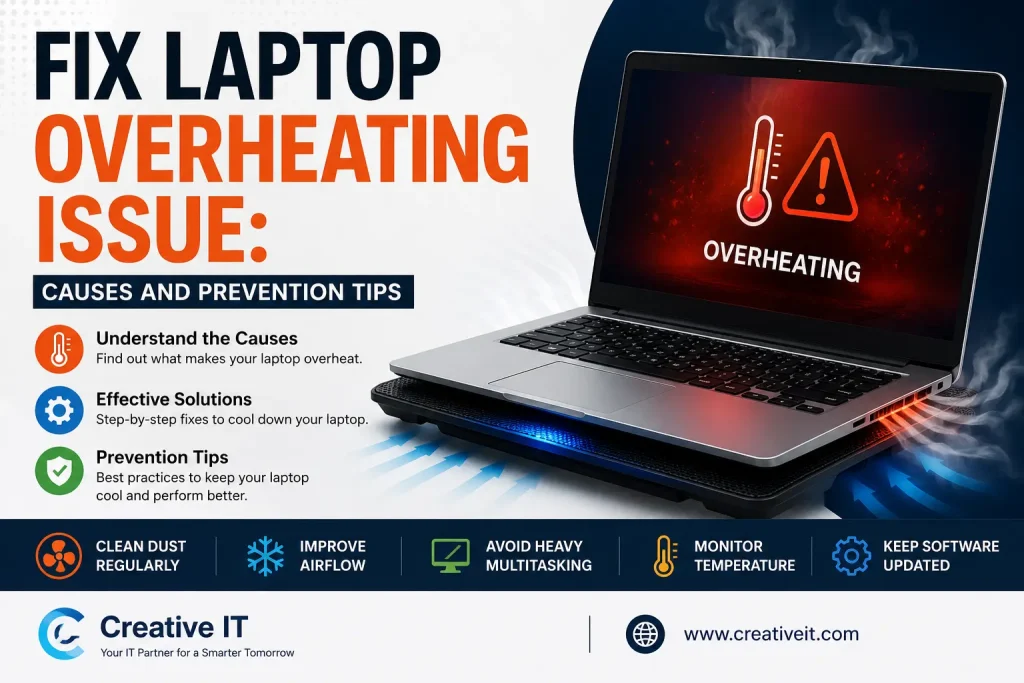
If you want to fix laptop overheating issue problems before they damage your device, you first need to understand what causes excessive heat and how to prevent it.
Laptop overheating is one of the most common technical issues today, especially for gamers, students, office workers, and professionals who use demanding software daily.
Although modern laptops are designed with cooling systems, heat can still build up due to dust, poor airflow, software overload, or aging hardware.
As temperatures rise, laptops may slow down, freeze, shut down unexpectedly, or suffer permanent hardware damage. Therefore, taking preventive measures early is essential.
In this guide, you will learn the major causes of overheating, effective solutions, maintenance tips, and professional recommendations from Creative IT to keep your laptop running smoothly.
Table of contents
- Why Laptop Overheating Is a Serious Problem
- Common Causes of Laptop Overheating
- How to Fix Laptop Overheating Issue
- Update Drivers and Operating System
- Benefits of New Thermal Paste
- Adjust Power Settings
- Prevention Tips to Avoid Laptop Overheating
- Recommended Cleaning Frequency
- Warning Signs You Should Never Ignore
- Why Professional Laptop Repair Matters
- Laptop Overheating vs Normal Heat
- Best Habits for Long-Term Laptop Health
- Conclusion
- FAQ’s
Why Laptop Overheating Is a Serious Problem
Many users ignore rising temperatures until performance problems become severe. However, overheating directly affects your laptop’s lifespan and speed.
When internal temperatures remain high for long periods:
- The CPU reduces performance automatically
- Battery health declines faster
- Internal components wear out
- Fans become noisy
- Sudden shutdowns occur
Consequently, even a small overheating issue can become an expensive repair later.
Common Causes of Laptop Overheating
Understanding the root cause is the first step to solving the problem effectively.
Dust and Dirt Blocking Airflow
Dust buildup inside the cooling vents is one of the biggest reasons laptops overheat. Over time, dirt accumulates around fans and heatsinks, restricting airflow.
As a result:
- Heat becomes trapped inside
- Fans spin harder
- Internal temperatures increase rapidly
Warning Signs of Dust Buildup
- Loud fan noise
- Reduced airflow
- Hot bottom panel
- Lag during simple tasks
Therefore, regular cleaning is extremely important.
Too Many Background Applications
Running multiple applications simultaneously forces the CPU and RAM to work harder. Consequently, the system generates additional heat.
High-Usage Activities That Increase Heat
| Activity | Heat Level |
|---|---|
| Gaming | Very High |
| Video Editing | High |
| Streaming 4K Videos | Medium-High |
| Multiple Browser Tabs | Medium |
| Graphic Design Software | High |
If your laptop constantly handles heavy tasks, overheating becomes more likely.
Faulty Cooling Fans
Cooling fans remove hot air from internal components. However, if the fan stops working properly, heat remains trapped inside the device.
Symptoms of a Bad Fan
- Grinding noises
- Fan not spinning
- Sudden shutdowns
- Extreme heat near vents
In such cases, replacing the fan may be necessary.
Old or Dry Thermal Paste
Thermal paste transfers heat from the CPU to the heatsink efficiently. However, after years of usage, the paste dries out and loses effectiveness.
Therefore:
- Heat transfer becomes weaker
- CPU temperatures rise faster
- Performance decreases significantly
Professional thermal paste replacement can improve cooling noticeably.
Using the Laptop on Soft Surfaces
Many people use laptops on beds, pillows, or sofas. Unfortunately, these surfaces block cooling vents underneath the device.
Because airflow becomes restricted:
- Heat accumulates quickly
- Fans struggle to cool components
- Laptop temperatures increase rapidly
Instead, always place your laptop on a flat, hard surface.
How to Fix Laptop Overheating Issue
Now that you understand the causes, let us explore practical solutions.
Clean the Cooling Vents and Fans
Cleaning your laptop is one of the fastest ways to reduce overheating.
Cleaning Tips
- Turn off the laptop first
- Use compressed air carefully
- Remove visible dust gently
- Clean vents regularly
Additionally, internal cleaning by professionals provides deeper maintenance.
Reduce CPU Usage
If your processor constantly runs at high usage, temperatures will rise quickly.
How to Lower CPU Load
- Close unused applications
- Disable unnecessary startup programs
- Reduce browser tabs
- Remove unwanted software
As a result, the laptop performs better and generates less heat.
Use a Laptop Cooling Pad
Cooling pads help improve airflow underneath the laptop. Although they are not a permanent fix, they reduce temperatures during heavy workloads.
Benefits of Cooling Pads
- Better ventilation
- Lower gaming temperatures
- Reduced fan strain
- Improved comfort
Gamers and video editors especially benefit from cooling accessories.
Update Drivers and Operating System
Outdated drivers sometimes cause hardware inefficiencies that increase processor load.
Therefore, regularly update:
- Graphics drivers
- BIOS firmware
- Windows updates
- Chipset drivers
Updated software often improves thermal management automatically.
Replace Thermal Paste
If your laptop is older than three years, replacing thermal paste can significantly reduce overheating.
Benefits of New Thermal Paste
| Improvement | Result |
|---|---|
| Better Heat Transfer | Lower CPU Temperature |
| Improved Performance | Faster Processing |
| Reduced Fan Noise | Quieter Operation |
| Lower Shutdown Risk | Greater Stability |
However, professional technicians should ideally perform this process.
Adjust Power Settings
High-performance power modes force your laptop to run at maximum speed continuously.
Instead:
- Use balanced mode
- Lower screen brightness
- Enable battery saver
- Reduce unnecessary animations
These adjustments reduce heat generation effectively.
Prevention Tips to Avoid Laptop Overheating
Prevention is always better than expensive repairs. Therefore, following healthy maintenance habits is essential.
Keep Air Vents Clear
Airflow is critical for cooling. Consequently, blocked vents quickly cause overheating.
Best Practices
- Avoid soft surfaces
- Maintain clean surroundings
- Keep vents uncovered
- Use the laptop in cool environments
Proper airflow improves cooling efficiency dramatically.
Clean Your Laptop Regularly
Dust accumulation happens gradually. Therefore, regular cleaning prevents airflow restrictions.
Recommended Cleaning Frequency
| Usage Type | Cleaning Frequency |
|---|---|
| Casual Usage | Every 6 Months |
| Gaming | Every 2-3 Months |
| Office Work | Every 4 Months |
| Dusty Environment | Monthly |
Consistent maintenance extends laptop lifespan significantly.
Monitor Laptop Temperature
Temperature monitoring software helps identify issues early before damage occurs.
Popular Temperature Monitoring Tools
- HWMonitor
- Core Temp
- MSI Afterburner
- Open Hardware Monitor
Monitoring temperatures regularly helps prevent serious hardware failures.
Avoid Overcharging
Although modern batteries include charging protection, excessive heat still affects battery health.
Smart Charging Habits
- Unplug after full charge
- Avoid overnight charging frequently
- Use original chargers
- Keep batteries cool
Healthy charging practices improve long-term performance.
Upgrade Older Hardware
Older laptops often struggle with modern software requirements. Consequently, outdated hardware generates additional heat.
Helpful Upgrades
- SSD installation
- RAM upgrades
- New cooling fans
- Fresh thermal paste
These upgrades improve both speed and cooling performance.
Warning Signs You Should Never Ignore
Sometimes overheating becomes dangerous. Therefore, recognizing warning signs early is critical.
Serious Overheating Symptoms
- Burning smell
- Blue screen errors
- Screen freezing
- Random shutdowns
- Battery swelling
- Extremely loud fans
If you notice these symptoms, seek professional repair immediately.
Why Professional Laptop Repair Matters
While basic maintenance helps, some overheating problems require expert diagnosis. Professional technicians can identify hidden issues that users often miss.
At Creative IT, technicians help users:
- Diagnose hardware problems
- Clean internal cooling systems
- Replace damaged fans
- Upgrade thermal paste
- Improve system performance
- Recover overheating laptops safely
As a result, users reduce downtime and extend the life of their devices.
Laptop Overheating vs Normal Heat
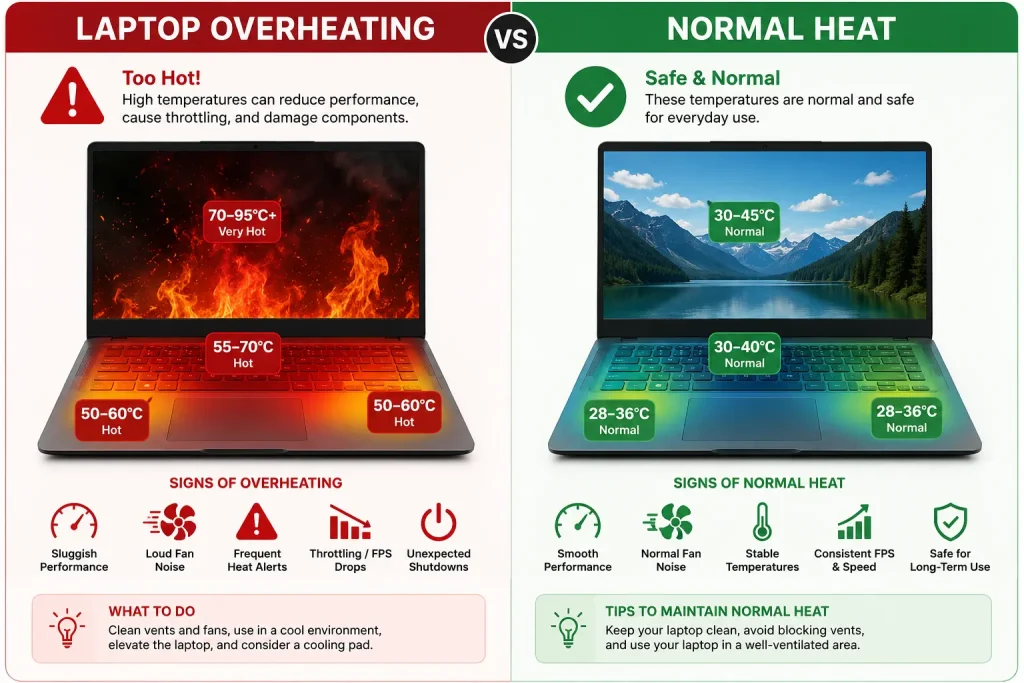
Many users assume every warm laptop is overheating. However, moderate warmth is completely normal during heavy workloads.
Normal Laptop Heat
- Mild warmth during streaming
- Slight fan activity
- Warm keyboard area
Dangerous Overheating
- Extremely hot surfaces
- Constant fan noise
- Sudden shutdowns
- Performance throttling
Understanding the difference helps you take action before serious damage occurs.
Best Habits for Long-Term Laptop Health
If you want your laptop to last longer, follow these habits consistently.
Long-Term Laptop Maintenance Checklist
- Clean cooling vents regularly
- Keep software updated
- Avoid excessive multitasking
- Use antivirus protection
- Monitor CPU temperatures
- Shut down periodically
- Avoid direct sunlight
Small preventive steps often prevent major repair costs later.
Conclusion
Laptop overheating is a common issue, but it should never be ignored. If you want to fix laptop overheating issue problems successfully, you must identify the cause early and apply proper maintenance techniques.
Cleaning vents, reducing CPU load, updating software, and replacing thermal paste can dramatically improve cooling performance.
Additionally, preventive care helps protect your laptop from long-term hardware damage and performance loss. If overheating problems continue despite troubleshooting, professional support from Creative IT can help diagnose and resolve deeper technical issues effectively.
With regular maintenance and smart usage habits, you can keep your laptop cool, fast, and reliable for years.
Read More: Laptop Running Slow? 12 Quick Fixes Before You Visit a Repair Shop.
FAQ’s
Your laptop may overheat because of dust buildup, blocked airflow, faulty fans, excessive multitasking, or outdated thermal paste.
Yes. Continuous overheating can damage the CPU, motherboard, battery, and other internal components over time.
Close heavy applications
Move to a cooler environment
Use a cooling pad
Clean air vents
Shut down the device temporarily
Yes. Gaming uses high CPU and GPU power, which naturally generates more heat than normal tasks.
For normal use, cleaning every six months is usually enough. However, heavy users and gamers should clean laptops every 2–3 months.
Yes. Fresh thermal paste improves heat transfer between the CPU and heatsink, lowering temperatures significantly.
No. Soft surfaces block airflow vents and increase overheating risks. Always use laptops on hard surfaces.