
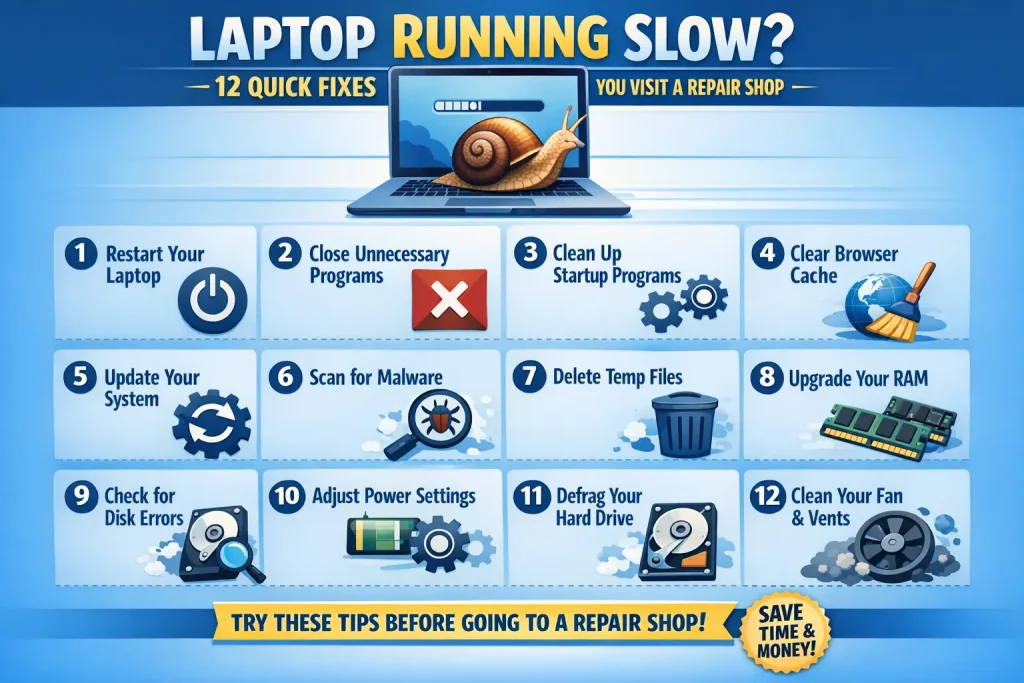
Is your laptop running slow, freezing, or taking forever to start? Don’t rush to a repair shop just yet.
In fact, most laptops can regain their speed with simple optimizations.
By following the tips in this guide, you can save both time and money while boosting your device’s performance.
Whether you use your laptop for work, gaming, or casual browsing, these 12 fixes will help your system run smoother.
Table of contents
Why Does a Laptop Slow Down?
A laptop may lag for several reasons, and identifying the cause is the first step toward fixing it. Common reasons include:
- Too many startup programs: Apps that launch automatically can consume valuable memory.
- Low storage space: A nearly full hard drive can significantly slow down your system.
- Background processes: Some apps keep running in the background, consuming RAM and CPU.
- Outdated software and drivers: Old updates may cause system instability and slower performance.
- Malware and viruses: Hidden threats can consume resources and make your laptop sluggish.
By understanding these causes, you can apply the right solutions efficiently.
12 Quick Fixes to Speed Up Your Laptop
1. Restart Your Laptop
Restarting may sound simple, but it clears temporary memory and stops unnecessary background processes. Ideally, restart your laptop daily or at least a few times a week to maintain performance.
2. Disable Startup Programs
Many apps launch automatically when you turn on your laptop. Disabling unnecessary startup apps reduces boot time and frees up system resources.
How to do it:
- Press Ctrl + Shift + Esc to open Task Manager
- Go to the Startup tab
- Disable apps you don’t need immediately
3. Free Up Disk Space
A full disk can drastically reduce speed. Remove unused files, uninstall old programs, and empty your recycle bin regularly.
4. Run Disk Cleanup
Windows has a built-in tool to delete temporary files, cache, and logs. Running Disk Cleanup ensures your storage is optimized and your laptop runs smoother.
5. Scan for Malware and Viruses
Malware often runs silently in the background, consuming resources. Run a full antivirus scan weekly to keep your laptop secure and fast.
6. Update Your System and Drivers
Outdated operating systems or drivers can cause lag and compatibility issues. Regular updates improve stability, security, and performance.
7. Upgrade RAM
If you use heavy programs or multitask frequently, upgrading your RAM can dramatically improve speed. Adding more memory allows your laptop to handle multiple applications smoothly.
8. Switch to an SSD
Traditional hard drives (HDD) are slower than solid-state drives (SSD). Switching to an SSD reduces boot time, improves file access, and overall system performance.
9. Close Background Apps
Even if you don’t notice them, many apps run in the background. Check Task Manager and close unnecessary processes to free up RAM and CPU.
10. Adjust Visual Effects
Windows animations and fancy visuals can slow older systems. Adjust your settings for best performance to improve speed without sacrificing functionality.
11. Check Power Settings
Ensure your laptop is set to High Performance mode. Power-saving modes reduce CPU speed, which can make your system feel sluggish.
12. Reset Windows (Last Resort)
If all else fails, resetting Windows restores your laptop to factory settings. Backup important data first, as this removes installed programs and personal files.
Quick Performance Comparison Table
| Fix Method | Impact | Difficulty |
|---|---|---|
| Restart Laptop | Medium | Easy |
| Disable Startup | High | Easy |
| Free Disk Space | High | Easy |
| Upgrade RAM | Very High | Medium |
| Switch to SSD | Very High | Medium |
Tips to Maintain Laptop Speed
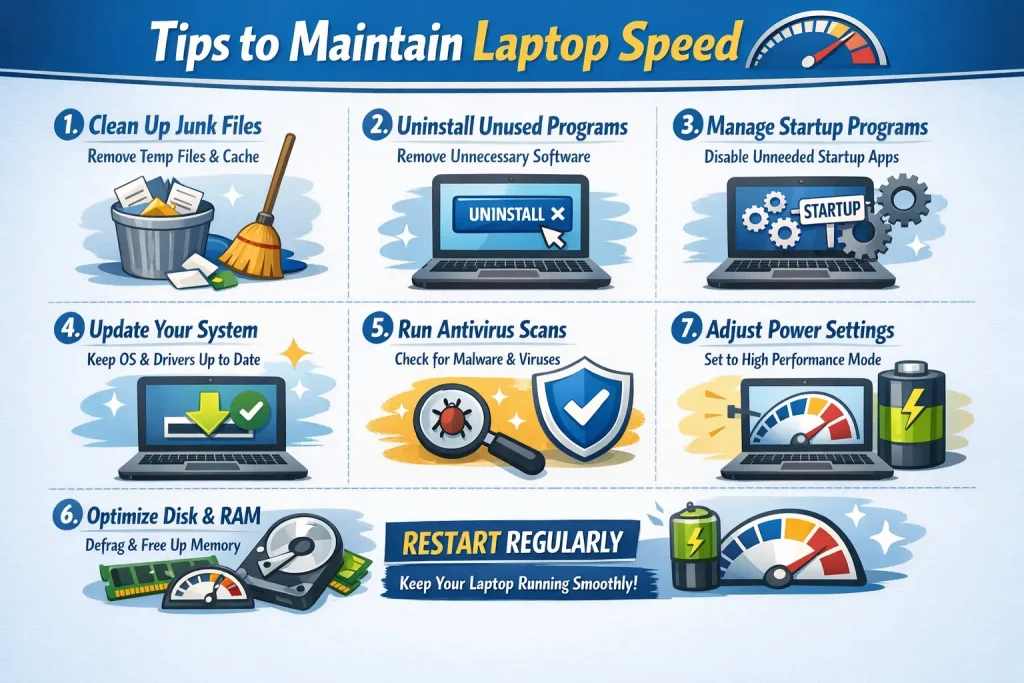
- Regularly clean storage – avoid clutter and keep files organized
- Update software frequently – including Windows, drivers, and apps
- Avoid unnecessary apps – install only what you need
- Use lightweight antivirus programs – don’t let security apps consume too many resources
- Close unused browser tabs – browsers like Chrome can consume huge amounts of RAM
By following these habits, your laptop will maintain speed for a longer time.
When Should You Consult a Professional?
Sometimes, slow performance is due to hardware issues. If your laptop still lags after trying all fixes, it might indicate:
- Overheating or cooling problems
- Battery issues
- Motherboard or CPU faults
- Hard drive failure
In such cases, it is recommended to consult experts like Creative IT, who provide reliable diagnostics and repair services. Professional assistance ensures your laptop is restored safely without ri
FAQs
Laptops can slow down due to low storage, background apps, malware, or outdated software.
Yes, restart, clean storage, disable startup apps, run disk cleanup, and close background processes.
Absolutely. SSDs offer faster boot times, quicker file access, and overall improved performance.
Yes, restarting clears temporary memory and stops unnecessary background processes.
If your laptop remains slow or shows hardware issues, consult professionals like Creative IT.
Final Thoughts
A slow laptop doesn’t always mean a costly repair. Many performance issues can be fixed with simple tweaks at home. By following these 12 quick fixes, keeping software updated, and practicing good laptop habits, you can enjoy a faster, more responsive system.
If issues persist, Creative IT provides professional, reliable services to diagnose and fix laptop problems safely.