
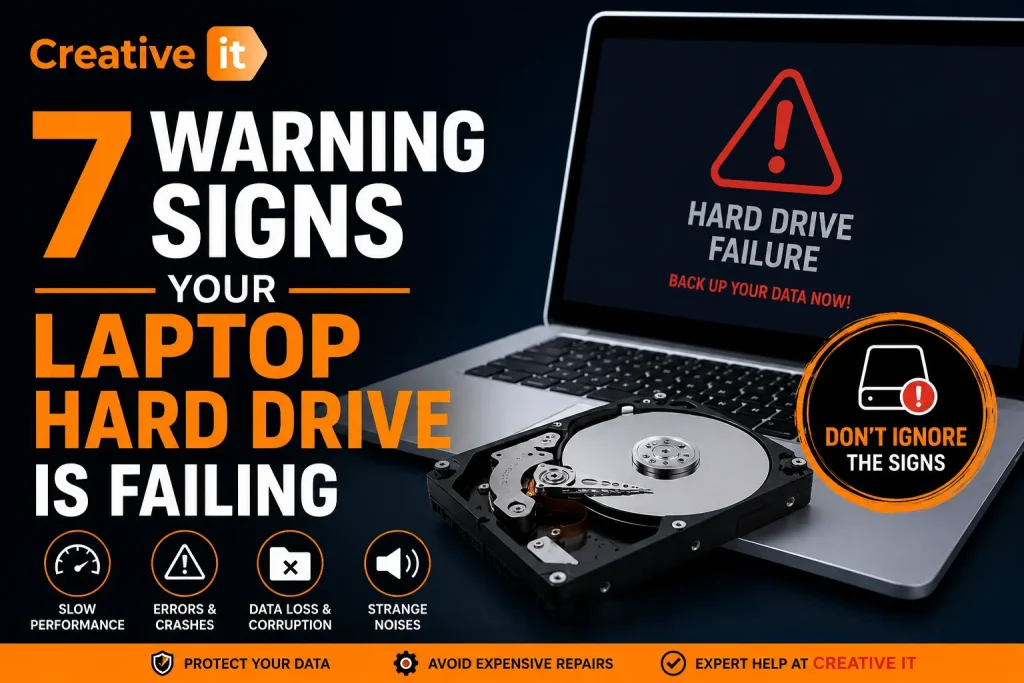
Modern laptops are designed to handle everything from business work and online learning to gaming and entertainment. However, one of the most overlooked hardware problems is a laptop hard drive failing unexpectedly. Unfortunately, many users ignore the early warning signs until their laptop crashes completely or important files become permanently inaccessible.
A failing hard drive can cause slow performance, corrupted data, startup issues, and even total system failure. Therefore, understanding the symptoms early can help you protect your files and avoid expensive emergency repairs.
In this guide, we will explain the most common signs of hard drive failure, what causes these problems, and how professional services like Creative IT can help diagnose and repair your laptop before it completely stops working.
What Does Laptop Hard Drive Failing Mean?
A hard drive stores your operating system, applications, and personal files. When a laptop hard drive failing issue begins, the storage device struggles to read or write data properly. As a result, your laptop becomes unstable and less responsive over time.
Hard drives may fail because of:
- Physical damage
- Aging hardware
- Overheating
- Malware infections
- Power surges
- Corrupted sectors
- Accidental drops
Although some failures happen suddenly, most hard drives show warning signs long before complete breakdown occurs.
1. Laptop Running Extremely Slow
One of the earliest symptoms of a laptop hard drive failing problem is noticeable performance slowdown.
While older laptops naturally become slower over time, a failing hard drive creates unusual delays even during simple tasks.
How Laptop Hard Drive Failing Affects Performance
You may notice:
- Applications freezing frequently
- Long startup times
- Slow file transfers
- Delayed folder opening
- Browser crashes
- Lag during multitasking
Furthermore, the drive may repeatedly attempt to access damaged sectors. Consequently, overall system speed decreases significantly.
When Slow Performance Becomes Serious
If your laptop suddenly becomes unusable despite having enough RAM and storage space available, the hard drive could be deteriorating internally.
Therefore, backing up your important files immediately is highly recommended.
2. Strange Clicking or Grinding Noises
Unusual mechanical sounds are another major warning sign of a laptop hard drive failing issue.
Traditional HDDs contain spinning disks and moving read/write heads. When these components become damaged, the drive often produces strange noises.
Common Hard Drive Failure Sounds
Listen for:
- Clicking sounds
- Grinding noises
- Buzzing
- Repetitive ticking
- Scraping sounds
These noises often indicate mechanical failure inside the drive.
Why Clicking Sounds Should Never Be Ignored
A clicking hard drive may no longer read stored data correctly. As a result, continued laptop usage can worsen the damage permanently.
If your laptop produces repeated clicking sounds, stop using it immediately and seek professional assistance from experts like Creative IT.
3. Frequent Crashes and Blue Screen Errors
Random crashes are another common symptom of laptop hard drive failing problems.
Although software issues occasionally cause crashes, repeated system instability often points toward storage failure.
Signs Your Crashes May Be Hard Drive Related
| Symptom | Possible Cause |
|---|---|
| Blue Screen Errors | Corrupted drive sectors |
| Random restarts | Storage communication failure |
| Windows freezing | Drive read/write problems |
| System repair loops | Damaged operating system files |
Additionally, if crashes occur while saving files or installing updates, the hard drive may struggle to write data correctly.
Laptop Hard Drive Failing During Boot
Some users also experience crashes immediately after startup. In many cases, Windows cannot properly access damaged storage sectors needed for boot operations.
4. Files Becoming Corrupted or Missing
A healthy storage device should keep your files secure and accessible. However, a laptop hard drive failing situation can corrupt data unexpectedly.
Signs of Data Corruption
You may notice:
- Missing files
- Corrupted photos or videos
- Documents failing to open
- Error messages during file access
- Files changing names automatically
Moreover, folders may disappear temporarily before reappearing later.
Why Data Corruption Happens
Damaged sectors prevent the hard drive from storing information reliably. Consequently, files become unreadable or inaccessible over time.
Because of this risk, regular backups are extremely important.
5. Laptop Fails to Start Properly
Startup issues are one of the clearest signs of a laptop hard drive failing condition.
If the operating system cannot locate essential system files, your laptop may fail to boot completely.
Common Startup Errors Linked to Hard Drive Failure
- “Operating System Not Found”
- Endless loading screen
- Black screen after startup
- Automatic repair loops
- Disk read errors
Although software corruption sometimes causes similar problems, failing drives are among the most common reasons.
Professional Diagnosis for Boot Problems
Technicians at Creative IT can run advanced diagnostics to determine whether your issue involves the hard drive, operating system, or another hardware component.
6. Overheating and Constant Fan Noise
Overheating can contribute directly to laptop hard drive failing problems.
When internal temperatures remain too high for long periods, storage components wear out much faster.
Warning Signs of Overheating
- Laptop becoming unusually hot
- Fans running constantly
- Sudden shutdowns
- Reduced system performance
- Hot air from vents
Additionally, dust buildup inside the laptop can restrict airflow and increase hardware stress.
How to Reduce Heat Damage
To protect your storage drive:
- Clean laptop vents regularly
- Avoid using laptops on beds or sofas
- Use cooling pads
- Update drivers and software
- Replace failing cooling systems
Preventive maintenance can significantly extend hardware lifespan.
7. SMART Warnings and Disk Health Alerts
Modern laptops include SMART monitoring systems that detect early hardware failure signs.
When a laptop hard drive failing issue develops, SMART technology may display warning messages before total failure occurs.
Common SMART Error Messages
- “SMART Status BAD”
- “Hard Drive Failure Predicted”
- “Disk Failure Imminent”
- “Backup Your Files Immediately”
These warnings should always be taken seriously.
What to Do After SMART Warnings
If you see SMART alerts:
- Back up important files immediately
- Avoid installing large programs
- Reduce laptop usage
- Contact a repair professional
- Consider replacing the drive
Ignoring these warnings may result in permanent data loss.
Common Causes of Laptop Hard Drive Failing
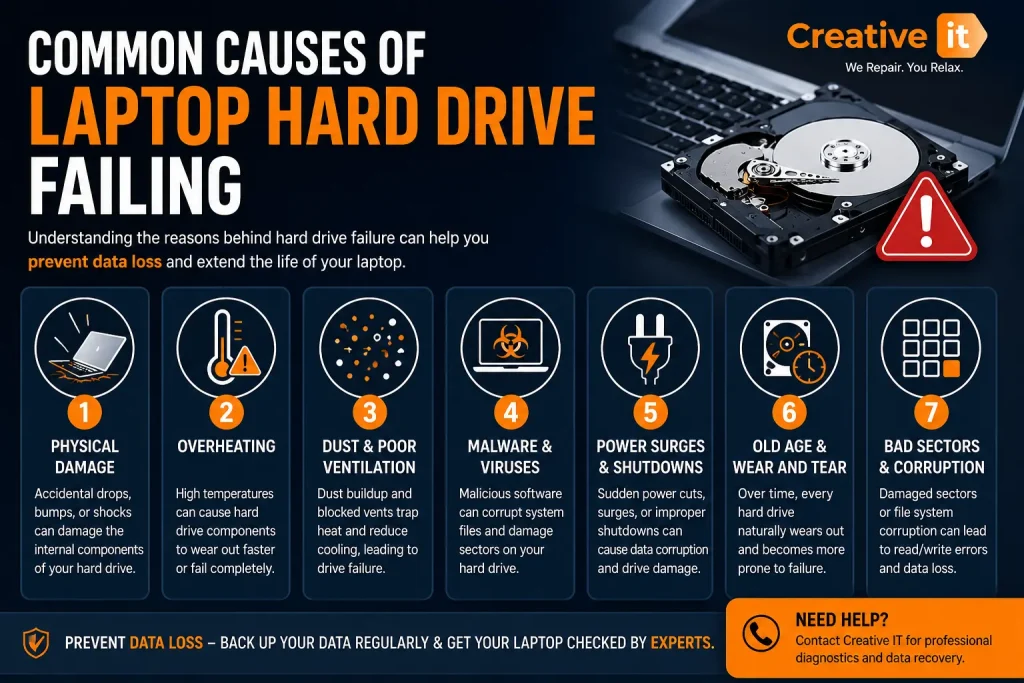
Understanding what causes hard drive damage can help prevent future issues.
Physical Damage
Dropping your laptop can damage delicate internal drive components instantly.
Old Hardware
Most traditional hard drives last between 3–5 years depending on usage.
Malware Infections
Viruses and malware may corrupt system files and storage structures.
Heat and Dust
Poor ventilation accelerates hardware wear significantly.
Power Problems
Unexpected shutdowns and power surges can damage storage drives over time.
HDD vs SSD: Which Is Better for Reliability?
Many users now replace traditional HDDs with SSDs for better reliability and performance.
| Feature | HDD | SSD |
|---|---|---|
| Speed | Slower | Much Faster |
| Moving Parts | Yes | No |
| Noise | Audible | Silent |
| Durability | Lower | Higher |
| Boot Speed | Slower | Faster |
Because SSDs have no moving components, they are generally more resistant to physical damage and overheating.
Therefore, upgrading to an SSD can improve both performance and long-term reliability.
How to Protect Your Data Before Complete Failure
When dealing with a laptop hard drive failing situation, protecting your files should become your highest priority.
Essential Backup Tips
- Use cloud storage services
- Save copies on external drives
- Enable automatic backups
- Avoid storing everything locally
- Check drive health regularly
Additionally, businesses should maintain professional backup solutions to reduce downtime and data loss risks.
Why Professional Laptop Repair Matters
Although DIY repairs may seem cheaper initially, improper handling can worsen hardware damage.
Professional repair technicians can:
- Diagnose hard drive problems accurately
- Recover important files safely
- Replace failing storage drives
- Upgrade laptops to SSDs
- Improve system performance
For reliable laptop diagnostics and data recovery services in Ireland, many customers trust Creative IT for professional support and affordable repair solutions.
How Creative IT Can Help

At Creative IT, experienced technicians provide:
- Laptop hard drive diagnostics
- SSD upgrades
- Data recovery services
- Laptop repair solutions
- Virus and malware removal
- Performance optimisation
Whether your laptop is slowing down or showing serious storage issues, professional assistance can help extend your device’s lifespan and protect valuable files.
FAQ’s
Common signs include slow performance, clicking noises, crashes, corrupted files, and startup problems.
Some logical errors can be repaired temporarily. However, physically damaged drives usually require replacement.
Yes. SSDs are faster, quieter, and generally more reliable because they have no moving parts.
In many cases, yes. However, successful recovery depends on the severity of the damage and how quickly action is taken.
No. Continued use may worsen damage and reduce the chances of successful data recovery.
Traditional HDDs typically last 3–5 years, while SSDs often have longer operational lifespans.
Final Thoughts
Recognising the early signs of laptop hard drive failing problems can save you from serious data loss and expensive repairs. Although slow performance and occasional crashes may seem harmless initially, they often indicate deeper storage issues developing inside the laptop.
Therefore, acting quickly is extremely important. Backing up your files, monitoring drive health, and seeking professional diagnostics can help prevent complete system failure.
For more information about protecting your storage drive and understanding common hard drive issues, you can also visit Seagate’s Hard Drive Failure Guide for additional expert insights and prevention tips.